
Community
Share your experience!
Turn on suggestions
Auto-suggest helps you quickly narrow down your search results by suggesting possible matches as you type.
Showing results for
- Community
- Xperia
- Other/General
- Xperia pro, reminders before updating.
Options
- Subscribe to RSS Feed
- Mark Topic as New
- Mark Topic as Read
- Float this Topic for Current User
- Bookmark
- Subscribe
- Mute
- Printer Friendly Page
Xperia pro, reminders before updating.
SOLVED- Mark as New
- Bookmark
- Subscribe
- Mute
- Subscribe to RSS Feed
- Highlight
- Report Inappropriate Content
January 2012
January 2012
Hi every one!
It seems everybody in this forum have some problems with their x.pro. Well, I just bought this phone a week ago and i'm not having any problems just yet. Ofcource I plan to keep it that way. I've already installed the pc companion on my PC and uninstalled some apps. The only app i've installed yet was the "app2sdfree", just to test my phone. My only query is about the updating part. I have two quetions;
- What should I prepare for before updating this phone? (In my opinion, i think its better to update it first before installing too many apps). And may I also know what features to expect after the update?
- I'm also planning to upgrade my sd card to 16gb. But I noticed that there are already preinstalled folders on it. Should I still copy them to the new sd card? Or is it safe to just insert the new sd card and those folders will be automatically created by the phone' apps?
I guess thats all for now, your kind words of help will be highly appreciated.
Thanks!
Solved! Go to Solution.
1 ACCEPTED SOLUTION
Accepted Solutions

- Mark as New
- Bookmark
- Subscribe
- Mute
- Subscribe to RSS Feed
- Highlight
- Report Inappropriate Content
January 2012
January 2012
1) backup everything then
2) use SEUS to update your phone
Don't forget to mark the Correct Answers & Helpful Answers
2)
Update Service (SEUS)
http://dl-www.sonyericsson.com/cws/download/1/110/61/1309763183/Update_Service_Setup-2.11.7.13.exe
1) Make sure you backup everything
Settings -> privacy -> Back up my data and Automatic restore should be selected
and also
Don't forget to mark the Correct Answers & Helpful Answers
Use one of these links to download the
Backup & Restore app
http://forum.xda-developers.com/showthread.php?t=1193802
or
http://www.elita-clan.com/downloads/backup_and_restore_v010935.apk
http://www.elita-clan.com/downloads/backup_and_restore_v010935.apkor
http://www.mediafire.com/?1n07llajeaoo03y
How to install it
You need to
go to settings -> applications -> check unknown sources
download IO File Manager
https://market.android.com/details?id=org.openintents.filemanager&feature=search_result
download the backup & restore app, transfer it to your SD card, use OI file manager to find it -> tap on it -> install it
Contacts
just to play it safe sync your contacts w/ google if you haven't already
open your phonebook
press MENU button -> tap on Send Contacts -> select all -> send it to your email
on your computer
-> download the file -> go to your gmail -> click on contacts -> click on more actions -> on the drop down menu click on "import" -> choose the file -> and click import
Apps
Don't worry so much about backing up your apps
on your computer go to
market.android.com -> log in -> click on My Library -> and send all your apps to your phone


SMS/MMS
if you don't want to use the backup & restore app then
Install "backup SMS" to back up your SMS and MMS to your Gmail
https://market.android.com/details?id=com.zegoggles.smssync&feature=search_result
or your SMS use
"backup & restore SMS"
https://market.android.com/details?id=com.riteshsahu.SMSBackupRestore&feature=search_result
or for your MMS use "Save MMS"
https://market.android.com/details?id=com.schwimmer.android.mmsextract&feature=search_result
Call Logs
And for call logs this is great
https://market.android.com/details?id=com.yang.android.ansta
My Phone Explorer
https://market.android.com/details?id=com.fjsoft.myphoneexplorer.client&hl=en
Don't forget to mark the Correct Answers & Helpful Answers
Other methods on how to install the Backup & Restore app and/or other apps that are stored on your SD card
1st Method
How to install it
You need to
go to settings -> applications -> check unknown sources
download IO File Manager
https://market.android.com/details?id=org.openintents.filemanager&feature=search_result
download the app on your computer, transfer it to your SD card, use OI file manager to find it -> tap on it -> install it
2nd method
download the apk on your computer, send it to yourself through email, make sure you send it to your Gmail
now on your phone
go to settings -> applications -> check unknown sources
wait for the email, once you get the email, open it, and instead of downloading the attachment it will allow you to install it, voila, done
3rd Method
BOX and upload the apks from any computer
install the App on your phone -> open BOX -> tap on the app -> install it
4th Method by far the easiest
an even Easier alternative
download the app, transfer it to your SD card
Download Apk Manager
https://market.android.com/details?id=com.magmamobile.app.apkinstaller&hl=en
open "Apk Manager" and voila select the apps that you wan't to install
Don't forget to mark the Correct Answers & Helpful Answers
6 REPLIES 6
- Mark as New
- Bookmark
- Subscribe
- Mute
- Subscribe to RSS Feed
- Highlight
- Report Inappropriate Content
January 2012
January 2012
1) backup everything then
2) use SEUS to update your phone
Don't forget to mark the Correct Answers & Helpful Answers
2)
Update Service (SEUS)
http://dl-www.sonyericsson.com/cws/download/1/110/61/1309763183/Update_Service_Setup-2.11.7.13.exe
1) Make sure you backup everything
Settings -> privacy -> Back up my data and Automatic restore should be selected
and also
Don't forget to mark the Correct Answers & Helpful Answers
Use one of these links to download the
Backup & Restore app
http://forum.xda-developers.com/showthread.php?t=1193802
or
http://www.elita-clan.com/downloads/backup_and_restore_v010935.apk
http://www.elita-clan.com/downloads/backup_and_restore_v010935.apkor
http://www.mediafire.com/?1n07llajeaoo03y
How to install it
You need to
go to settings -> applications -> check unknown sources
download IO File Manager
https://market.android.com/details?id=org.openintents.filemanager&feature=search_result
download the backup & restore app, transfer it to your SD card, use OI file manager to find it -> tap on it -> install it
Contacts
just to play it safe sync your contacts w/ google if you haven't already
open your phonebook
press MENU button -> tap on Send Contacts -> select all -> send it to your email
on your computer
-> download the file -> go to your gmail -> click on contacts -> click on more actions -> on the drop down menu click on "import" -> choose the file -> and click import
Apps
Don't worry so much about backing up your apps
on your computer go to
market.android.com -> log in -> click on My Library -> and send all your apps to your phone
SMS/MMS
if you don't want to use the backup & restore app then
Install "backup SMS" to back up your SMS and MMS to your Gmail
https://market.android.com/details?id=com.zegoggles.smssync&feature=search_result
or your SMS use
"backup & restore SMS"
https://market.android.com/details?id=com.riteshsahu.SMSBackupRestore&feature=search_result
or for your MMS use "Save MMS"
https://market.android.com/details?id=com.schwimmer.android.mmsextract&feature=search_result
Call Logs
And for call logs this is great
https://market.android.com/details?id=com.yang.android.ansta
My Phone Explorer
https://market.android.com/details?id=com.fjsoft.myphoneexplorer.client&hl=en
Don't forget to mark the Correct Answers & Helpful Answers
Other methods on how to install the Backup & Restore app and/or other apps that are stored on your SD card
1st Method
How to install it
You need to
go to settings -> applications -> check unknown sources
download IO File Manager
https://market.android.com/details?id=org.openintents.filemanager&feature=search_result
download the app on your computer, transfer it to your SD card, use OI file manager to find it -> tap on it -> install it
2nd method
download the apk on your computer, send it to yourself through email, make sure you send it to your Gmail
now on your phone
go to settings -> applications -> check unknown sources
wait for the email, once you get the email, open it, and instead of downloading the attachment it will allow you to install it, voila, done
3rd Method
BOX and upload the apks from any computer
install the App on your phone -> open BOX -> tap on the app -> install it
4th Method by far the easiest
an even Easier alternative
download the app, transfer it to your SD card
Download Apk Manager
https://market.android.com/details?id=com.magmamobile.app.apkinstaller&hl=en
open "Apk Manager" and voila select the apps that you wan't to install
Don't forget to mark the Correct Answers & Helpful Answers
- Mark as New
- Bookmark
- Subscribe
- Mute
- Subscribe to RSS Feed
- Highlight
- Report Inappropriate Content
January 2012
January 2012
if you want to manually update your phone to the latest firmware this is how
Xperia Pro MK16i/a 2.3.4 update 4.0.2.A.0.58
http://talk.sonyericsson.com/thread/29687
Don't forget to mark the Correct Answers & Helpful Answers
- Mark as New
- Bookmark
- Subscribe
- Mute
- Subscribe to RSS Feed
- Highlight
- Report Inappropriate Content
January 2012
January 2012
Regarding your SD card this is how to backup your SD card
on your PC
1) open any folder -> click on tools -> properties -> view -> show hidden files
2) mount the SD card, go to your SD card, press Ctrl + A then Ctrl C, on your desktop create a new folder, open it, then press CTRL + V
Also if you get a new SD card make sure it's SD HC class 10; otherwise it'll be really slow and it will act up
Don't forget to mark the Correct Answers & Helpful Answers
- Mark as New
- Bookmark
- Subscribe
- Mute
- Subscribe to RSS Feed
- Highlight
- Report Inappropriate Content
January 2012
January 2012
so you SHOULD backup everything and then if you want to increase the Internal Memory of your phone so you can add more apps then this is another option, you will have to root first, no you won't have to unlock your bootloader so your warranty should be fine, you can unroot anytime either by using the same method to root (SuperOneClick) or by using PCC or SEUS.
This is how to root
http://forum.xda-developers.com/showthread.php?t=1312859
Don't forget to mark the Correct Answers & Helpful Answers
this is how to add more Internal Memory it's a long process but its worth it
1) backup everything (Check above)
2) backup your SD card (check above)
now this is where it gets AWEOME-ER
Guide to using Link2SD on your Xperia smartphone
This guide may seem lengthy, but trust us when we say it is straightforward. All steps have been documented which makes it look daunting. Read each section carefully and follow the steps outlined to install Link2SD.
1. PREPARATION
Please make sure you have completed all of the following before starting the tutorial.
On your PC:
– Install the necessary drivers for your Xperia smartphone onto your PC/laptop. The easiest way to do this is to ensure that Sony Ericsson PC Companion is installed on your PC. Once installed, connect your phone to complete the process.
– Download and install MiniTool Partition Wizard onto your PC or laptop.
On your Xperia:
– Enable USB de-bugging mode: Setting –> Applications –> Development –> Tick ‘USB debugging’
– Enable the ability to install unknown apps: Setting –> Applications –> Tick ‘Unknown sources’
– Install Link2SD from Android Market onto your Xperia smartphone. It is a free download.
2. ROOT
3. BACKUP MEMORY CARD
As we will be creating a partition on your microSD memory card, make sure you create a backup just in case anything goes wrong.
a) Create a new folder on your PC and name it anything you want, such as ‘SD_Backup’
b) Connect your phone to the PC, navigate to your memory card and copy the contents to the backup folder.
4. CREATE SECONDARY PARTITION
You now need to create a secondary partition on your microSD memory card that will enable you to use Link2SD.
Don't forget to mark the Correct Answers & Helpful Answers
Note: We will use MiniTool Partition Wizard to create a secondary partition on your microSD card. This partition can be ext2, ext3, ext4 or FAT32. We will use FAT32 as it is supported on all phones and should lead to less troubleshooting later. You can use any partition manager of your choosing, but the steps below guide you through MiniTool Partition Wizard.
There is no need to wipe your memory card when going through this process, just ensure you have at least 0.5GB to 1.0GB of free space to make it worthwhile. You also do not need to use a microSD card adaptor as the process below creates the partition whilst the phone is connected to your PC.
a) Connect your handset to the PC via USB and then launch MiniTool. You should see the details pop up under ‘Disk 2′.
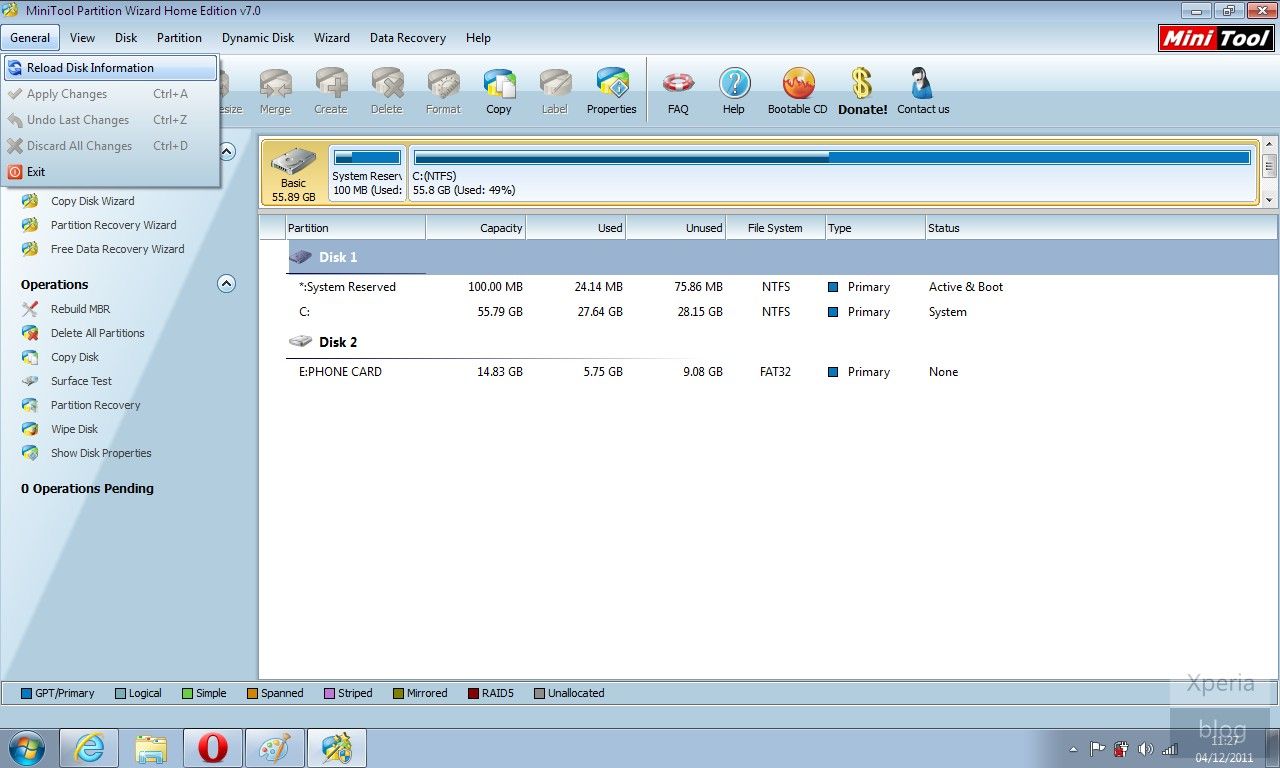
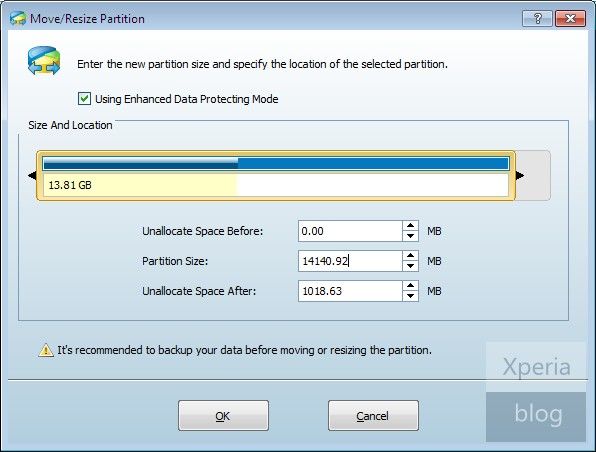
b) Click on the memory card under Disk 2 in MiniTool and then in the left pane, press ‘Move/Resize Partition’. On the blue bar under ‘Size and Location’, move the right arrow towards the left to create the size of the secondary partition desired. In the example below we created a secondary partition with 1018.63MB of space. This value can also be typed in manually in ‘Unallocate Space After’.
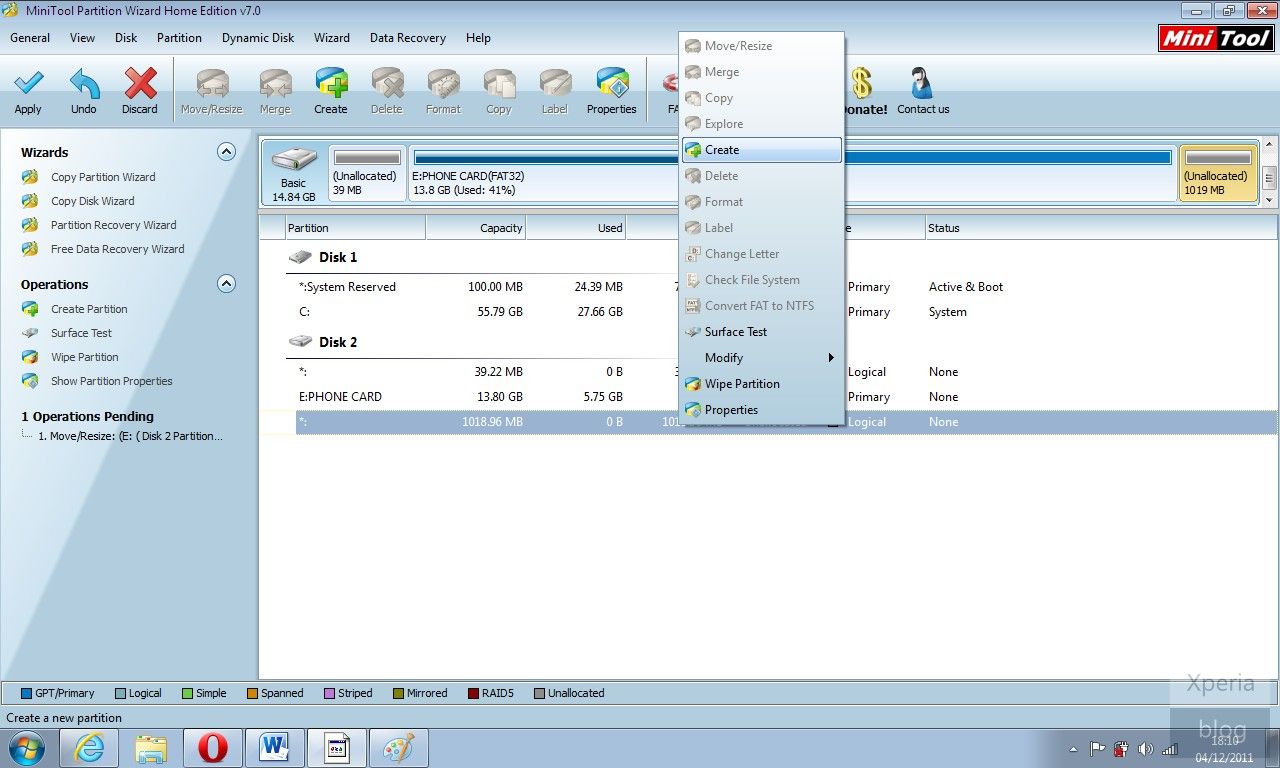
c) Once this is done you should see that your memory card is now split into two partitions under Disk 2 of MiniTool. Right click this new partition and then press ‘Create’.
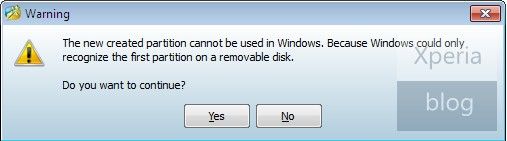
If you see this pop-up below, just press ‘Yes’ to continue.
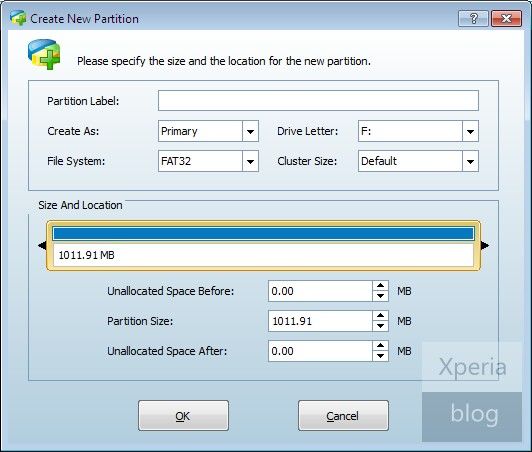
d) You should then see this ‘Create New Partition’ window. Under ‘Create As’ click Primary and then under ‘File System’ click FAT32. Leave the cluster size as default and you can assign whichever drive letter you want. Once finished press OK.
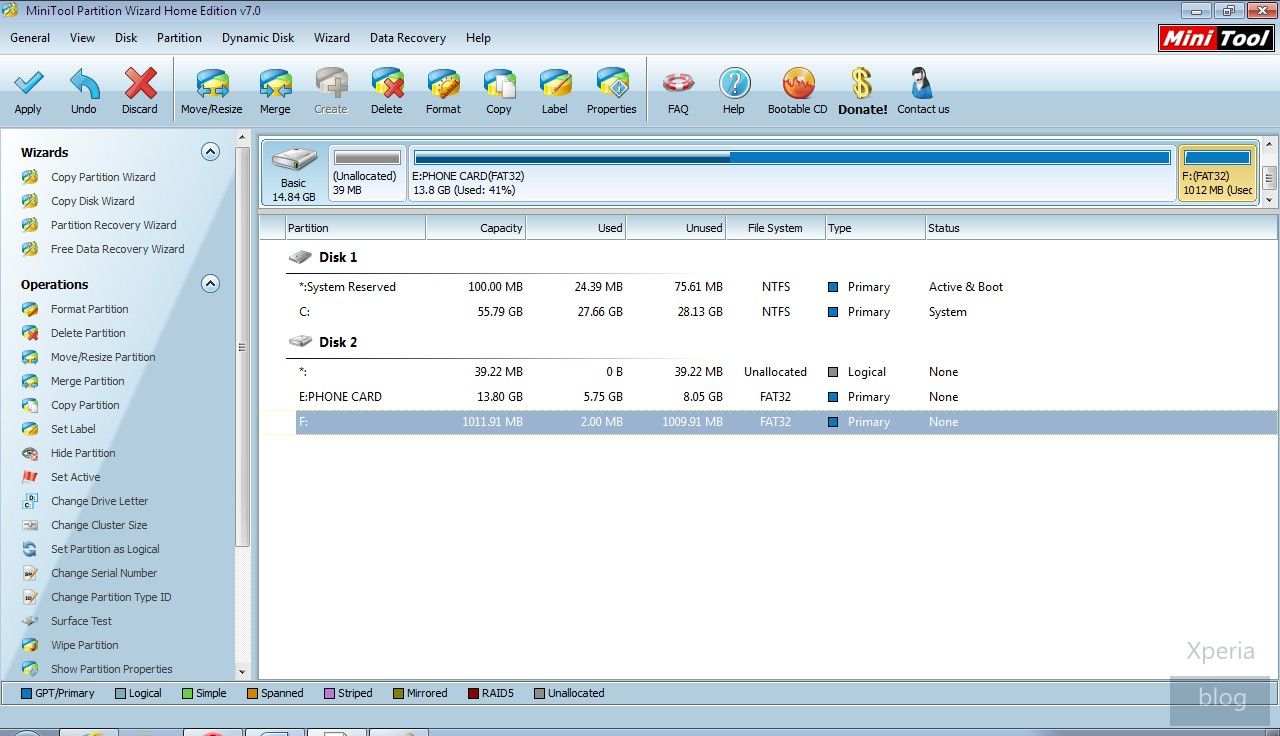
e) This should bring you back to the main MiniTool screen. Now hit the ‘Apply’ button on the top-left of the screen, denoted by a tick symbol.
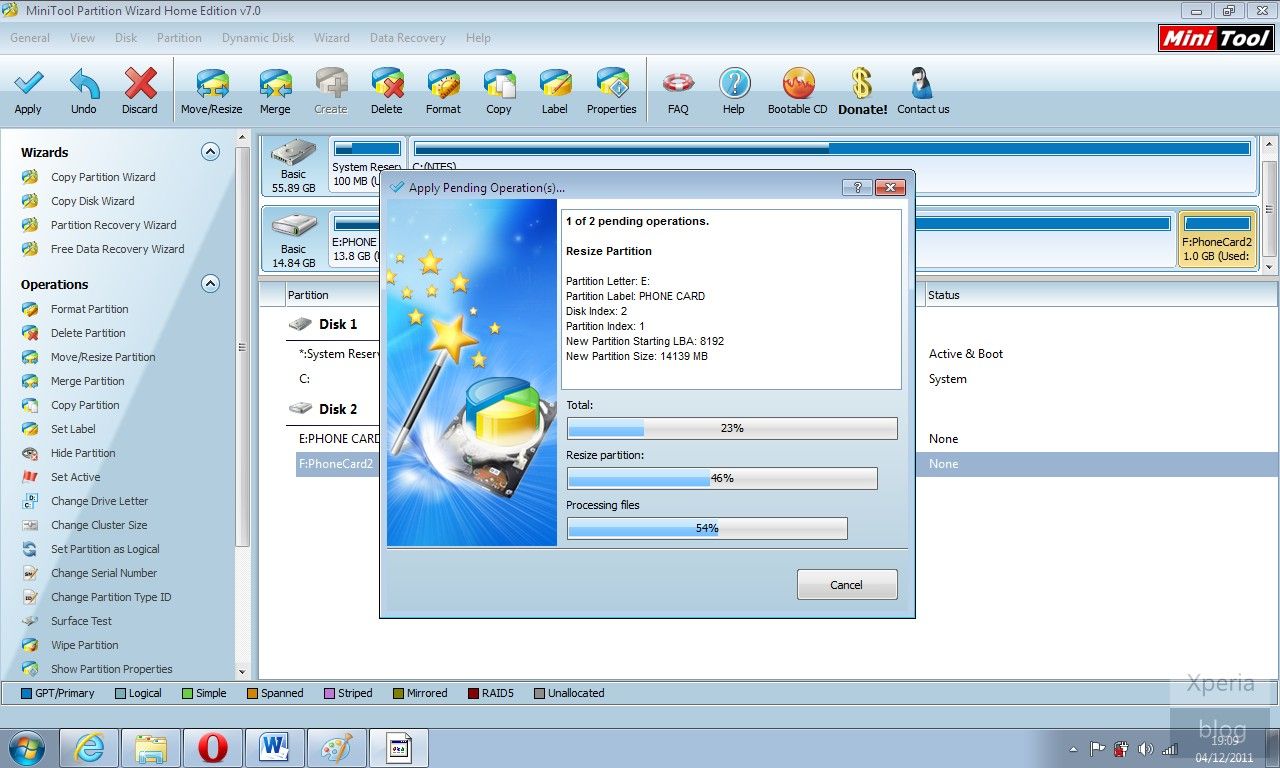
This will bring up another pop-up window and will take several minutes to both resize and create the secondary partition.
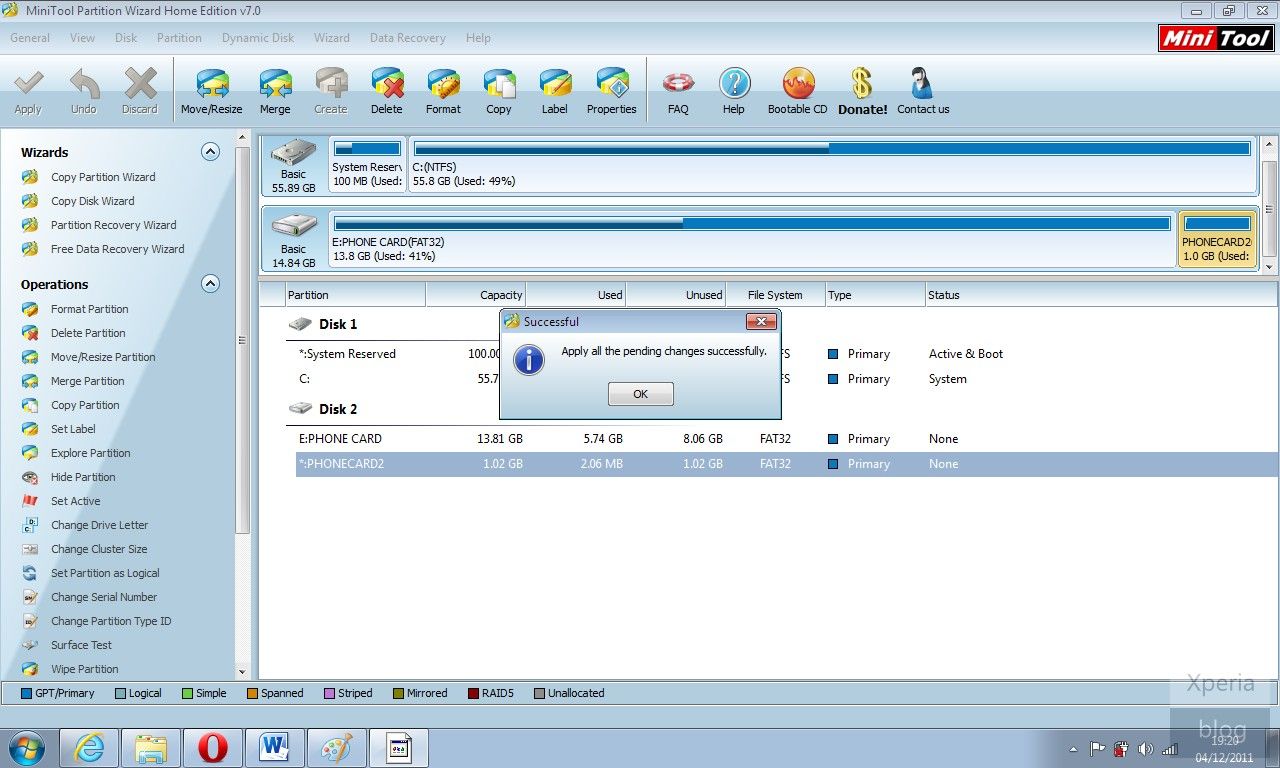
If successful, you should see message below. Congratulations your card is ready to use in conjunction with Link2SD.
5. LINK2SD
This application makes it easy for users with root privileges on their phone to move applications to the SD card.
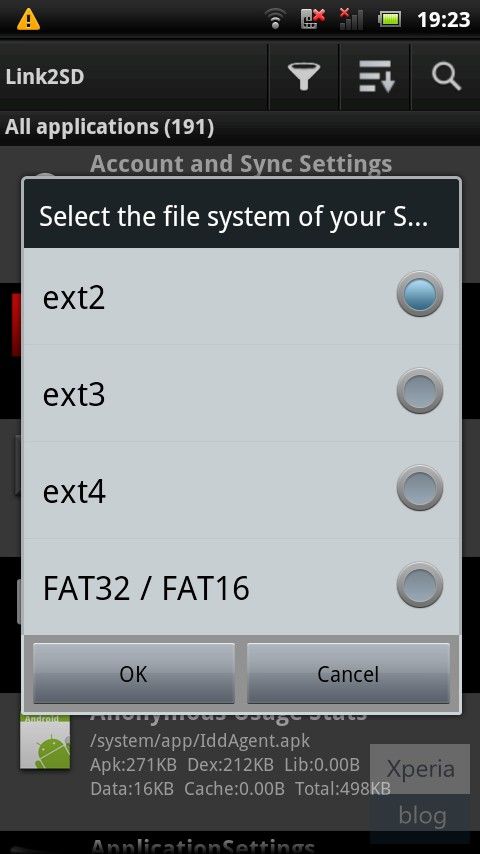
a) Open the Link2SD app on your phone. You should be greeted with the following menu, check the FAT32 option and click OK.
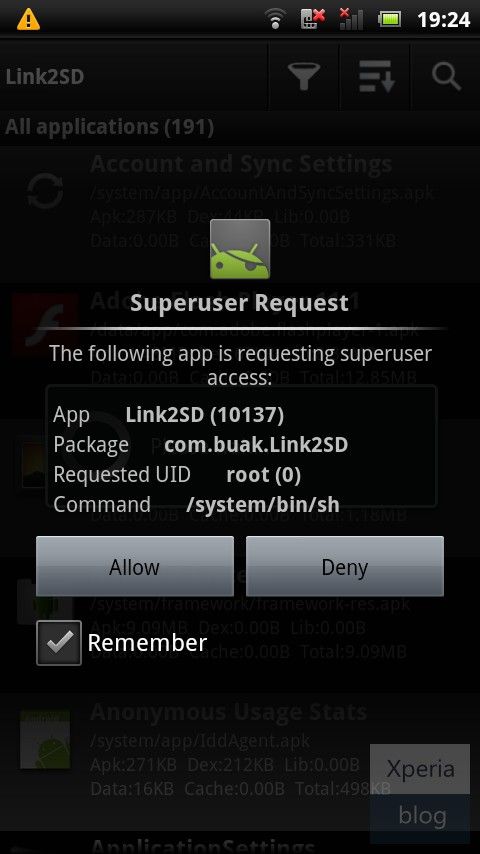
You will then see the Superuser Request, click ‘Allow’.
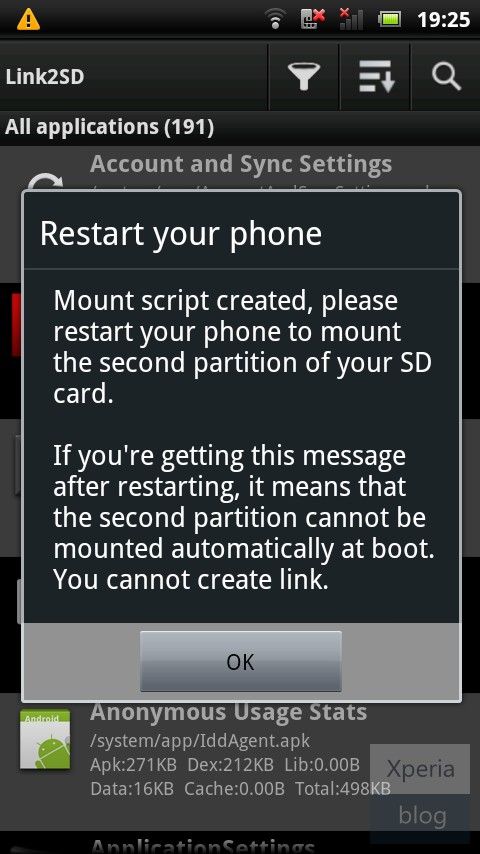
Once you see the following message, restart your phone. The app should now be ready to use.
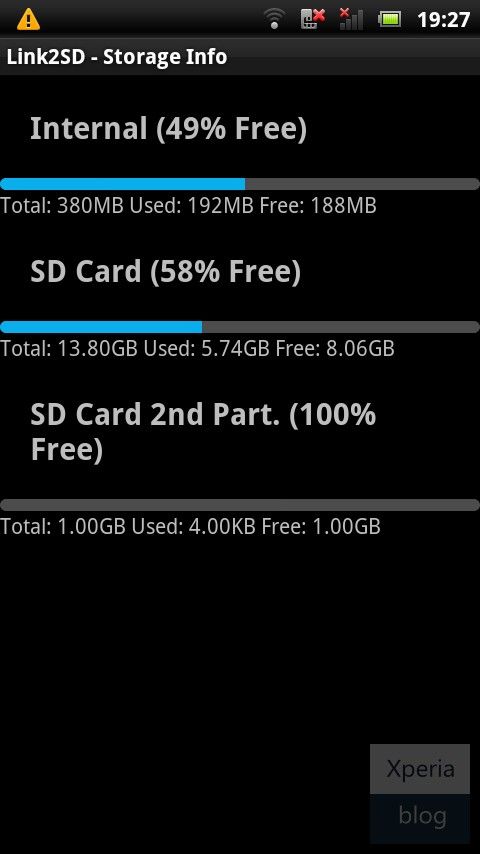
b) To make sure everything is installed correctly. Click the Menu button and go to ‘Storage Info’. This will show you the internal memory and your two partitions on the memory card. In our case, you can see that the second partition has 1GB free.
c) Now you need to move the apps of your choice to the memory card. Click the Menu button and press ‘Multi-select’.

Choose which apps you want to move by clicking the tick box next to the app. System apps are greyed out and cannot be selected. Link2SD can only move apps that are already on the internal memory. If you have apps already on your SD card, you will need to move them back to the internal memory before you can link them with Link2SD.
Don't forget to mark the Correct Answers & Helpful Answers
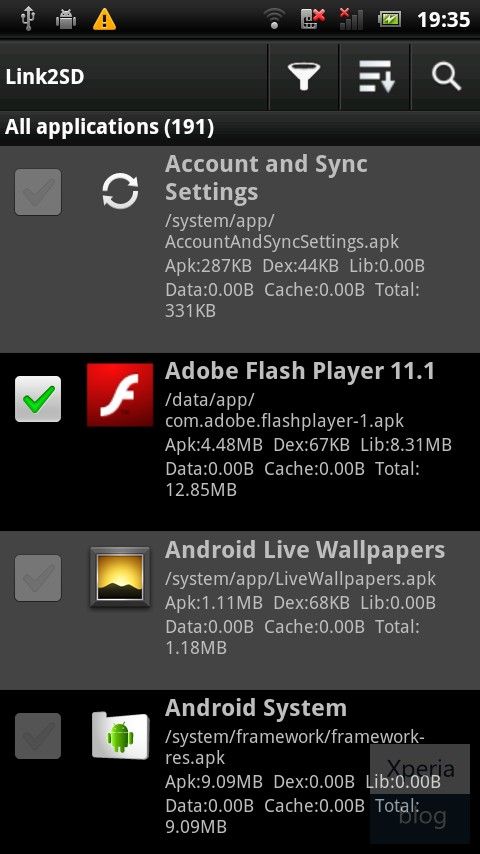
If you want to move all of your apps, pressing the menu button will bring up another menu allowing you to do this.
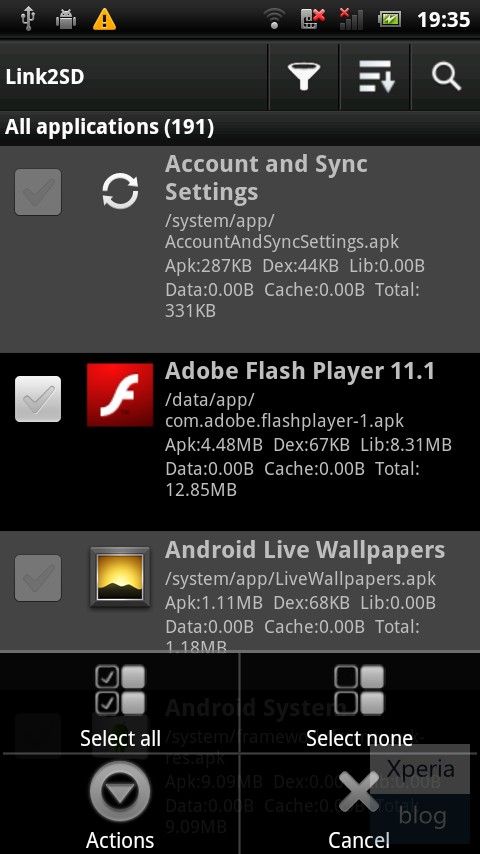
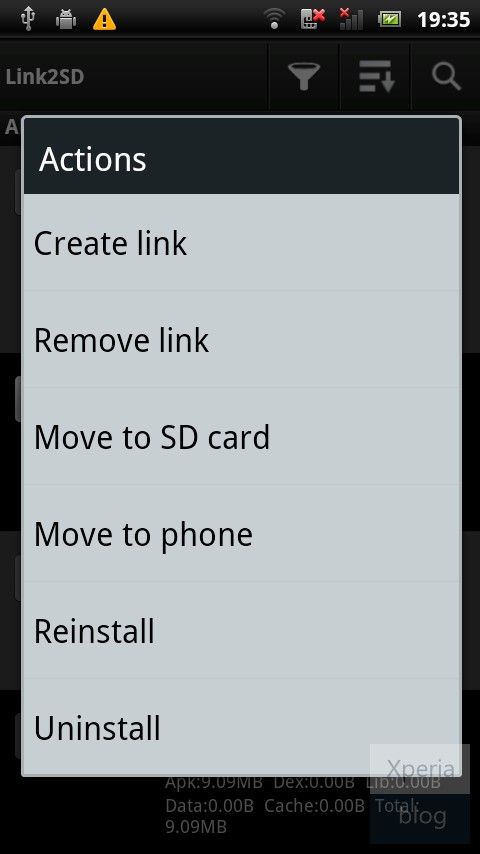
d) Once you have chosen which apps you want to move, you then need to hit the menu button and press ‘Actions’, which will bring up the following menu. Press ‘Create Link’.
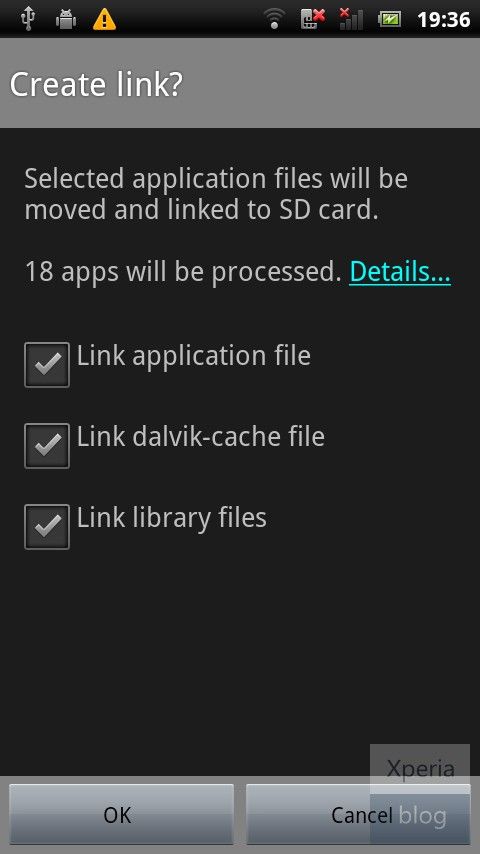
Leave all three check boxes ticked and press OK. Link2SD will now do its work and move/link the selected apps to your memory card.
Once finished, you should see that the apps you have moved have ‘Linked -> SD Card’ in red font in the Link2SD app list. Reboot your phone.
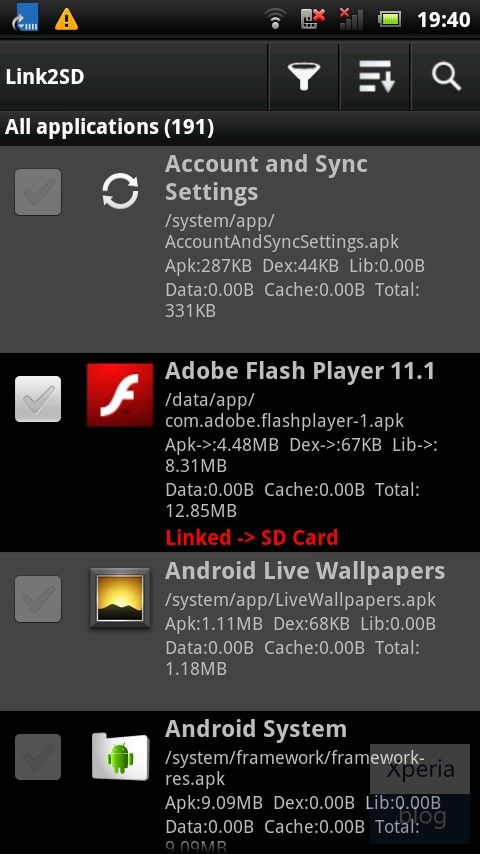
e) Congratulations your phone is now using Link2SD! You should now go to Settings by pressing the menu button and configure how you would like Link2SD to work. The main decision here is whether you want to Auto Link newly installed apps to the memory card. Given that you’ve gone through the hassle of installing Link2SD we suggest you enable Auto Link and make worrying about your internal memory a thing of the past.
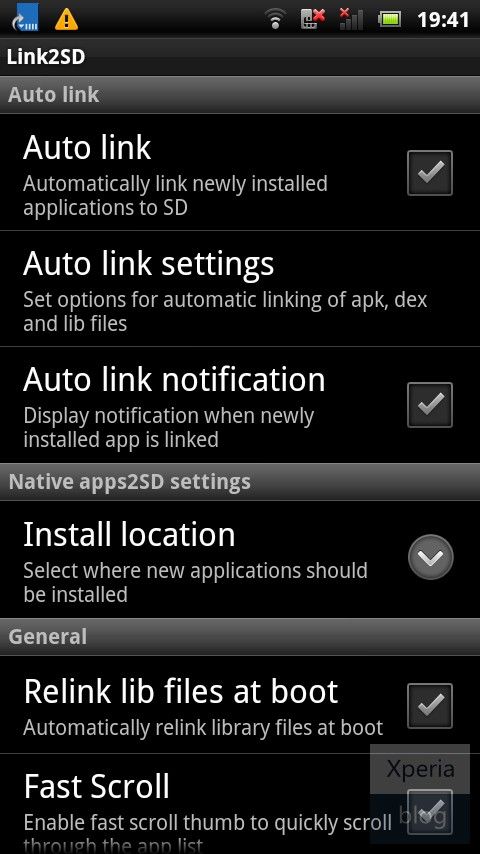
Special Thanx to the Xperiablog
http://www.xperiablog.net/2011/12/12/link2sd-guide-never-worry-about-internal-memory-limits-again/
Don't forget to mark the Correct Answers & Helpful Answers
- Mark as New
- Bookmark
- Subscribe
- Mute
- Subscribe to RSS Feed
- Highlight
- Report Inappropriate Content
January 2012
January 2012
wow, i didnt think updating a phone would be so much work..
how about the upgrading of the sd card. Is it a simple plug and play type? or are those pre created folders be there right away?
Thanks
- Mark as New
- Bookmark
- Subscribe
- Mute
- Subscribe to RSS Feed
- Highlight
- Report Inappropriate Content
January 2012
January 2012
that's if you don't want to lose your contacts, apps, sms, mms, settings. but you can skip all that and use SEUS by itself, your call.
You can just put it in your phone and it should be recognized by it. as simple as that, you can follow the steps on how to transfer everything from your old SD card to your new SD card
Don't forget to mark the Correct Answers & Helpful Answers

0online
1903352posts